Neon Electrix

Blog

Your blog category

Epson WorkForce Printer Paper Feed Problems: Solutions

Epson WorkForce Printer Paper Feed Problems: Solutions Paper feed issues are a common headache for Epson WorkForce printer users. Whether the printer refuses to pick up paper or feeds multiple sheets at once, these problems can interrupt your workflow and delay important tasks. Fortunately, most paper feed issues can be resolved with a few straightforward steps. Here’s how to troubleshoot and fix them: Check the Paper Type and LoadMake sure you’re using the correct paper size and type recommended for your Epson WorkForce model. Fan the stack of paper before loading it to prevent sheets from sticking together, and ensure it’s properly aligned in the tray. Clean the Paper RollersDust and debris on the paper feed rollers can cause feeding problems. Power off the printer, open the access panels, and gently clean the rollers using a lint-free cloth lightly dampened with water. Allow them to dry completely before turning the printer back on. Avoid Overloading the TrayOverfilling the paper tray can lead to misfeeds or multiple pages being pulled in at once. Keep the paper stack within the tray’s maximum fill line and always adjust the paper guides to fit snugly against the paper. Update Printer FirmwareOccasionally, paper feed problems can be caused by outdated firmware. Check the Epson support site for updates specific to your WorkForce model and install them as needed. Inspect for ObstructionsRemove any jammed paper or foreign objects from the input and output areas. Even small scraps can cause feeding errors. If your Epson WorkForce printer continues to struggle with paper feed issues despite these efforts, it may be time for a more thorough inspection. At Neon Electrix, our printer repair experts are ready to diagnose and fix even the most stubborn feed problems to keep your printing operations running smoothly.

Epson WorkForce Printer Paper Feed Problems: Solutions Read More »
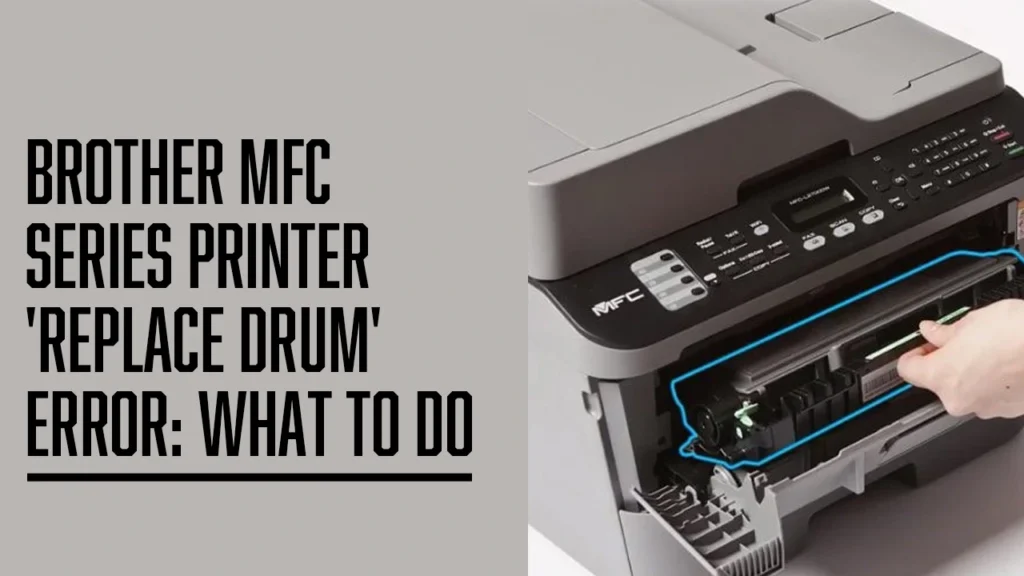
Brother MFC Series Printer ‘Replace Drum’ Error: What to Do

Brother MFC Series Printer ‘Replace Drum’ Error: What to Do If your Brother MFC Series printer is displaying a “Replace Drum” error, it means the drum unit has reached the end of its expected life cycle. The drum is a vital component that works with the toner to transfer images and text onto paper. While replacing the drum unit is typically required, sometimes the error can persist even after installation. Here’s what to do: Replace the Drum Unit (If Needed)Open the front cover, remove the toner and drum assembly, separate the toner from the old drum, and attach it to a new drum unit. Then, reinstall the assembly into the printer. Reset the Drum CounterAfter replacing the drum, you must manually reset the drum counter to clear the error message: Open the front cover. Press and hold the “OK” or “Clear” button (depending on the model) until a reset option appears. Select “Drum” and confirm the reset. Clean the Corona WireIf you’re not replacing the drum immediately, try cleaning the corona wire inside the drum unit. Slide the green tab from left to right several times to ensure a clean transfer path. If you’ve followed these steps and still see the error, the issue may be due to a faulty sensor or installation error. At Neon Electrix, our technicians are experienced in resolving these kinds of issues quickly and effectively. We can help you get your Brother MFC printer working like new again.

Brother MFC Series Printer ‘Replace Drum’ Error: What to Do Read More »

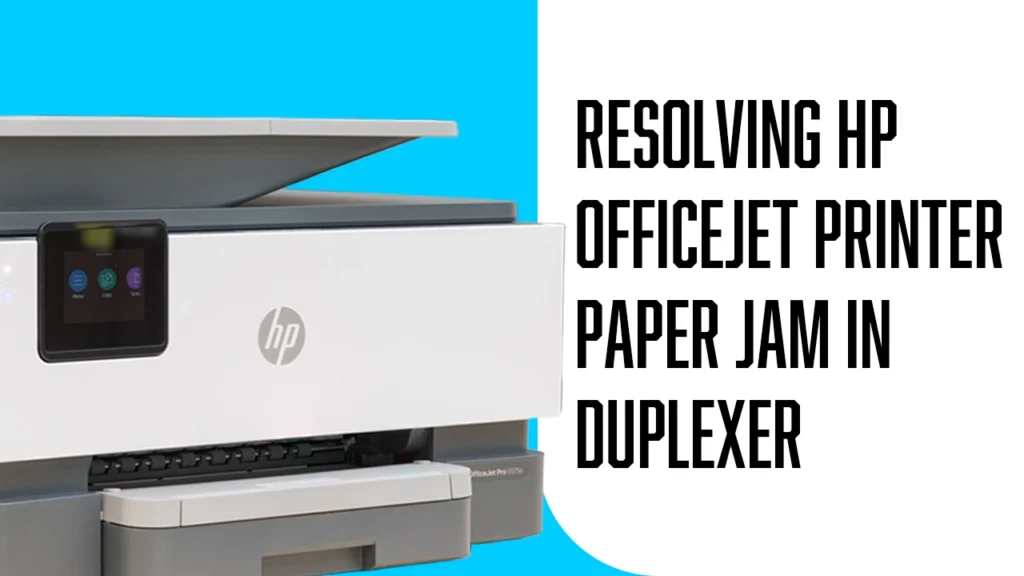
Resolving HP OfficeJet Printer Paper Jam in Duplexer

An HP OfficeJet duplexer paper jam is caused by paper or any foreign object stuck inside the paper path. When a paper is stuck, the fresh sheets can not go inside, and so the whole printing process stops. To fix this, we need to take out the duplexer and clear the jam. In this blog, we will guide you through the process of HP duplexer removal and clearing the printer paper jam inside it Step 1– Turn off the printer by pressing the power button. In some cases, the printer won’t turn off because of an auto-duplex paper path jam. Even if it doesn’t turn off, continue with the next steps.  Step 2– If there is a USB plug connected to the computer, then unplug it. Step 3– Take out the power plug from the printer to avoid any damage to the printer.  Step 4–  For HP duplexer removal, Push in both sides of the duplexer and then pull it straight out of the printer.  Step 5– Check for a paper jam inside the printer. Step 6– Gently remove it by pulling it out using both your hands to clear the HP rear access door jam. Step 7– Use a flashlight to search for more tiny pieces of paper or any foreign objects.  Now it is time to do the OfficeJet duplex jam clear. Step 8– Open the duplexer by pressing both sides of the duplexer together. HP two-sided printing jam happens because of this only. Remove the stuck paper inside the paper, and then put the duplexer inside the printer.  Paper jams are frustrating, especially when they occur in the duplexer, where fixing them can feel even more complicated. If you’ve already cleared a paper jam from your HP OfficeJet’s duplexer but your printer still isn’t working properly, there could be a deeper issue. Persistent jams are sometimes caused by misaligned components or worn-out rollers. At Neon Electrix, our team specializes in diagnosing and repairing common printer problems, including the HP 8025 duplexer fix. We’re here to help get your printer back up and running smoothly.

Resolving HP OfficeJet Printer Paper Jam in Duplexer Read More »

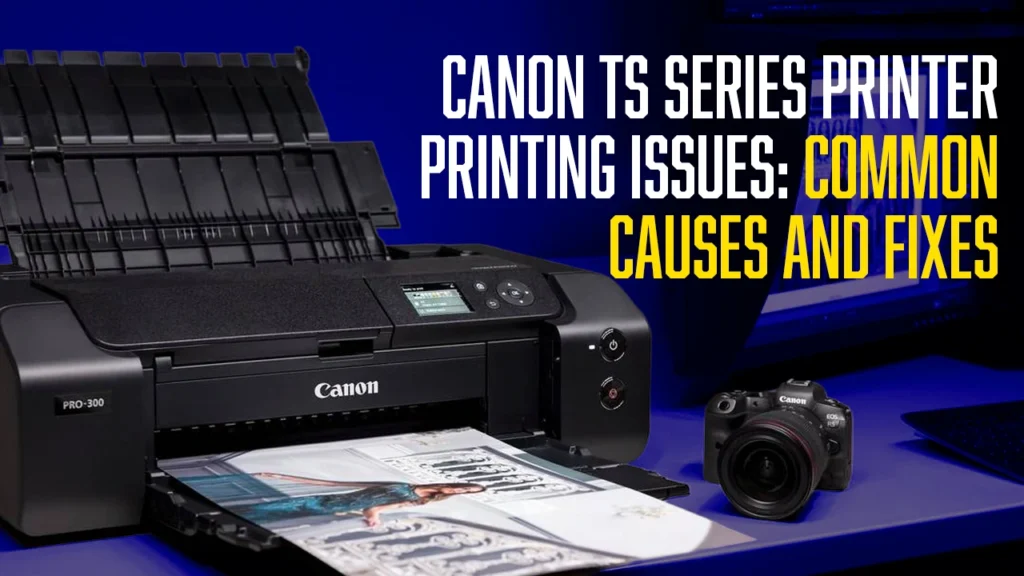
Canon TS Series Printer Printing Issues: Common Causes and Fixes

If your Canon TS series printer is giving you trouble—whether it’s producing faded prints, smudging ink, or not printing at all—you’re not alone. Canon TS printing issues are common and often stem from problems like clogged printheads, outdated drivers, or spooler service errors. The good news is that most of these issues can be resolved with simple troubleshooting steps. In this guide, we’ll walk you through the most frequent Canon printer problems, including print quality issues with models like the Canon TS8320, spooler malfunctions, and driver-related errors. Canon Print Quality Issue Canon TS8320 print quality issues happen mostly because the printhead is not aligned.  Aligning the print head is also a Canon TS print streaks fix. Here is how to align it.  Step 1– Open Devices and Printers settings from the control panel. Step 2– Find your printer from the list of devices, and then select the printer properties option.  Step 3– From the maintenance menu, click on the Print Head Alignment option as shown in the image below. Just follow the instructions, and the Canon print head alignment will be done. Canon Print Spooler Error Spooler error is one of the most common Canon TS printing issues. Follow the steps below to fix it. Step 1– Open the Services app on your computer.  Step 2– To fix the Canon printer spooler error, find the print spooler, right-click on it, and then select properties. Step 3– Select Startup type as Automatic and then click on the Start button to start the print spooler service. Canon TS Printer Drivers Issue The driver issue on Canon printers is fixed by downloading the correct Canon TS printer drivers for your computer. Follow the steps below to do it. Step 1– Navigate to the official website of Canon.  Step 2- Select your printer, and then select the operating system you are using.  Step 3– Download the driver and install it. Tried the steps but still dealing with Canon TS printing issues? Whether it’s a persistent print quality problem, a driver malfunction, or a recurring spooler error, getting expert help can save time and frustration. Our Canon TS8320 troubleshooting guide covers the basics, but if your printer still won’t cooperate, Neon Electrix is here to help. Contact us today for expert assistance.

Canon TS Series Printer Printing Issues: Common Causes and Fixes Read More »